

Build an Interactive Task Tracker: A Hands-On Tutorial from AI Valley
Welcome to another exciting project-building session! Here at AI Valley, located centrally for students in Zirakpur, we believe the absolute best way to master programming is by building real, interactive applications. Students across the Tricity region—from complete beginners to advanced adult learners—join our tech labs every week to turn their ideas into working software.
Today, you are going to step into the shoes of a front-end web developer. We will be building a sleek, fully functional Task Tracker (To-Do List) using HTML, CSS, and vanilla JavaScript. Whether you are a professional breaking into the tech industry, or a parent searching for the best coding classes for kids in Zirakpur, this hands-on guide will give you a perfect, practical introduction to how the modern web works.
🧠 Why Learn Vanilla JavaScript First?
Before jumping into popular frameworks like React, Angular, or Vue, understanding "vanilla" JavaScript (plain JavaScript without any external libraries) is absolutely crucial. At AI Valley, our curriculum prioritizes strong foundational knowledge over shortcuts.
When you know how the Document Object Model (DOM) works under the hood—how to select elements, update styles, and listen for user clicks using pure code—learning any new framework in the future becomes a breeze. This project is specifically designed to teach you precisely that: how to control the web page directly with code.
🎯 What You Will Build
You will build a dynamic Web Application where users can type in a task, add it to a list, click to mark it as "complete" (which will neatly cross it out), and delete it when it is no longer needed. This isn't just a theoretical exercise; this is exactly the kind of interactive, logic-based project our students build during our beginner web development bootcamps to understand how websites come to life!
📋 Prerequisites & Materials
To follow along with this tutorial, you only need a few free tools.
- A Code Editor: We highly recommend downloading [Visual Studio Code (VS Code)](https://code.visualstudio.com/), the industry standard for web developers.
- A Web Browser: Google Chrome, Mozilla Firefox, or Safari will work perfectly.
- Three Blank Files: Create a new folder on your desktop named
TaskTracker. Inside this folder, create exactly three files:index.html,style.css, andscript.js. - Hardware: Any standard laptop or desktop computer. Don't have a computer setup at home? Visit the AI Valley labs where all materials and high-end computers are provided for our offline students!
---
Step 1: Crafting the HTML Skeleton
HTML (HyperText Markup Language) serves as the skeleton of our web application. It tells the browser what elements exist on the screen—like buttons, input boxes, structural containers, and text.
Open your index.html file in VS Code and type (or paste) the following code. We are setting up a main container that holds our application's title, a text input field, an "Add Task" button, and an empty list where our task items will eventually appear.
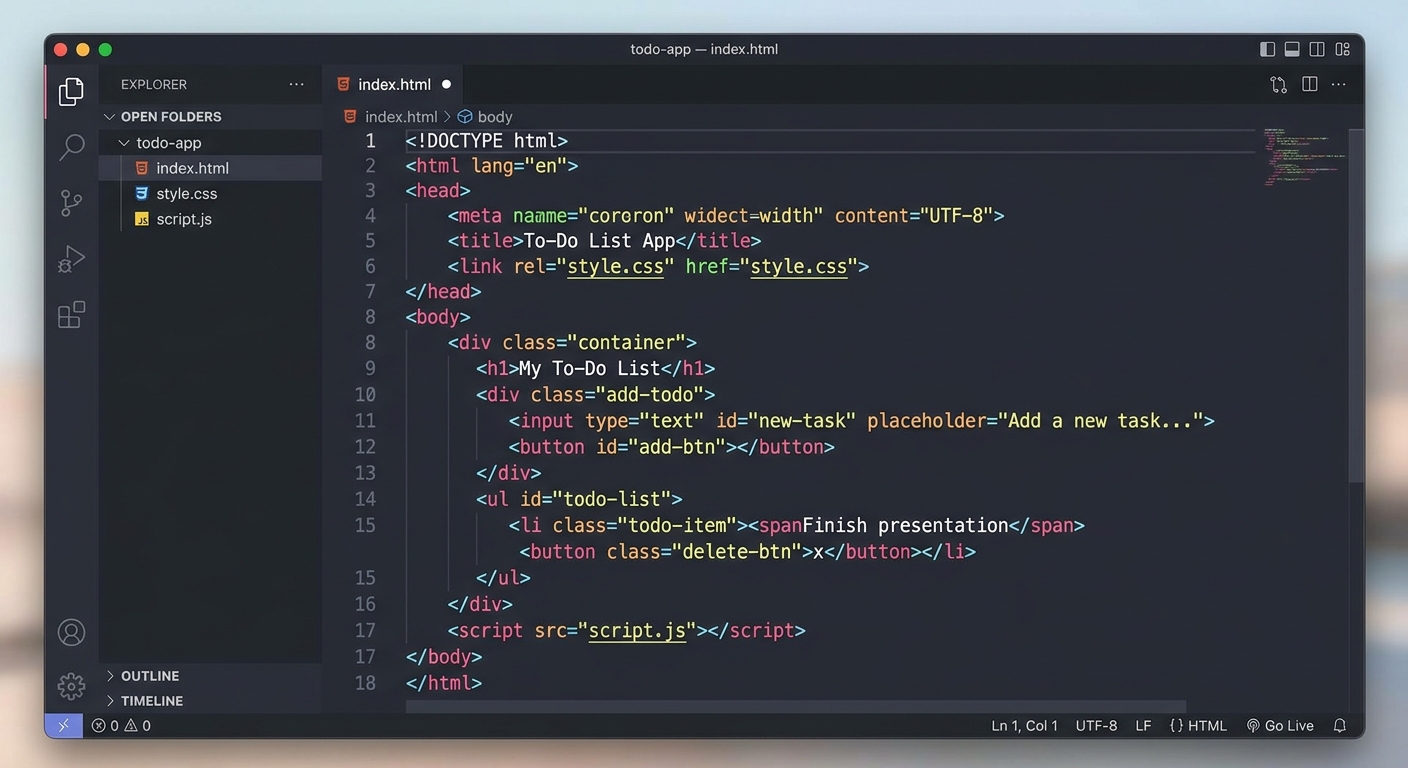
A screenshot of a code editor showing the basic HTML structure for a to-do list app, with the file explorer visible on the left.
Understanding the HTML Code:
: We create a wrapper block to hold our entire app so we can center it easily later.
id attributes (taskInput and addBtn) so our JavaScript can find them later.