
AI Valley Logo
THE AI VALLEYK12 Coding & Robotics
Back to Blog
Build a Typing Speed Tester App: Step-by-Step Web Development Tutorial | AI Valley Panchkula
Bhavesh Bansal
May 17, 2026
12 min read

Build a Typing Speed Tester App: Step-by-Step Web Development Tutorial | AI Valley Panchkula

Welcome to AI Valley, the premier destination for tech education and the #1 rated institute for the best coding classes for kids in Panchkula! If you've been searching for a "coding institute near me Panchkula" to kickstart your web development journey, you are in the exact right place. At AI Valley, our teaching philosophy revolves around hands-on, project-based learning. Students from across the Tricity area build real-world, interactive applications every single week to bridge the gap between theory and actual software engineering.

Today, we are going to build a fully functional, interactive Typing Speed Tester App using HTML, CSS, and JavaScript. Whether you are an absolute beginner or looking to sharpen your frontend skills before joining our comprehensive web development course in Panchkula, this tutorial is designed to guide you step-by-step.

๐ŸŽฏ What You Will Build

You will create a sleek, modern web application that tests how fast a user can type. The app will feature:

  • A dynamic 60-second countdown timer.
  • Live text coloring (glowing green for correct letters, bright red for mistakes).
  • A real-time Words Per Minute (WPM) calculator that updates automatically.
  • Automatic text generation so the user can type continuously.
  • This is exactly the kind of interactive, logic-based project our students build to master DOM manipulation and JavaScript fundamentals.

    ๐Ÿ“‹ Prerequisites & Materials

    To build this project, you don't need any expensive software or high-end servers. All you need is:

  • A Text Editor: We highly recommend [Visual Studio Code (VS Code)](https://code.visualstudio.com/), the industry standard.
  • A Web Browser: Google Chrome, Firefox, or Edge to test your app.
  • Basic Knowledge: A foundational understanding of HTML tags and CSS properties will help, but we will explain every line of code as we go.
  • ๐Ÿ’ก AI Valley Local Student Note: If you prefer learning in a highly equipped physical environment with in-person guidance, visit AI Valley's Panchkula lab! All hardware, high-end PCs, and expert mentorship are provided for our offline students.

    ---

    Step 1: Setting Up the HTML Structure

    The first step in any web development project is creating the structural skeleton using HTML. We need a main container to hold our app, a dashboard area to show the Timer, WPM, and Errors, a display box for the quote, and an input box for the user.
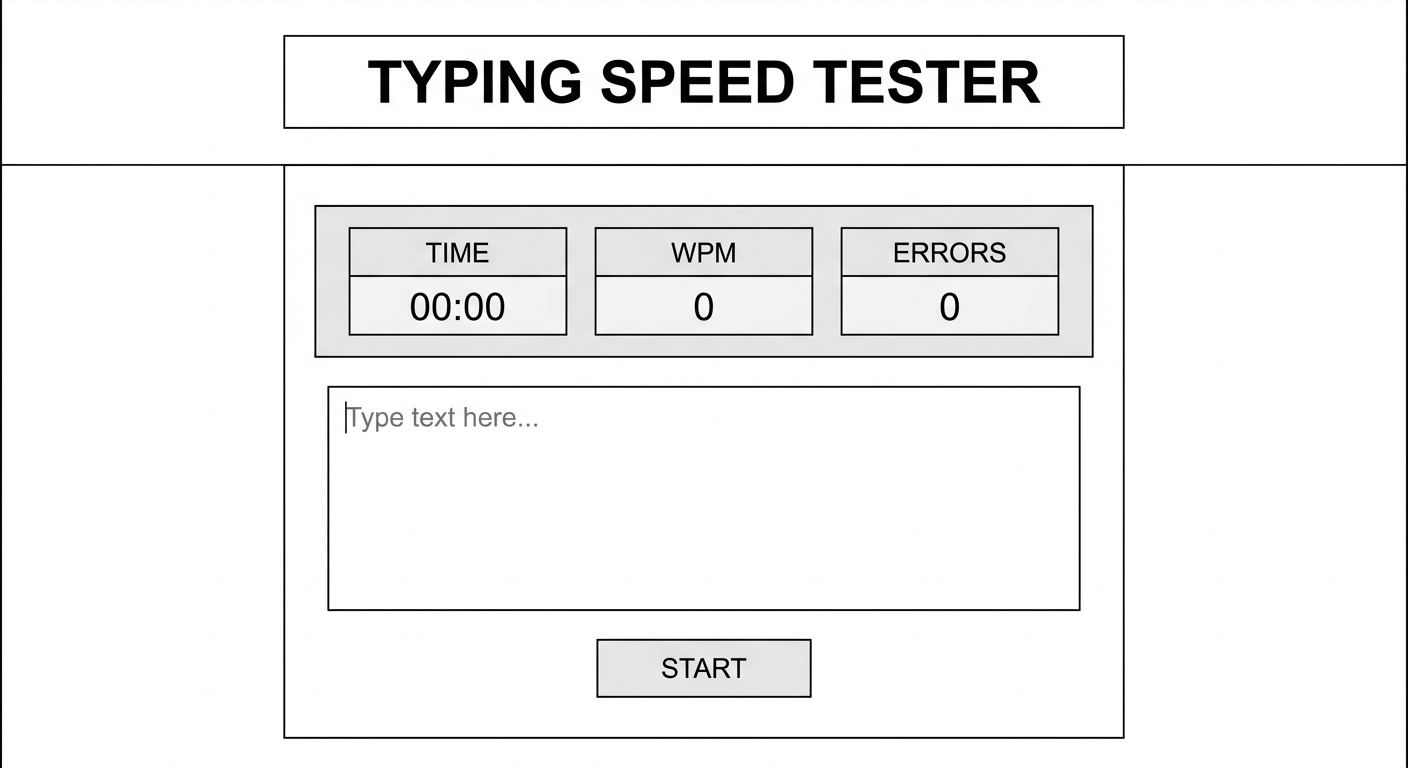
    A wireframe or simple unstyled HTML text showing the title, stats dashboard, empty text box, and a start button on a plain white background

    A wireframe or simple unstyled HTML text showing the title, stats dashboard, empty text box, and a start button on a plain white background

    Create a file named index.html and paste the following code:

    html
    <!DOCTYPE html>
    <html lang="en">
    <head>
        <meta charset="UTF-8">
        <meta name="viewport" content="width=device-width, initial-scale=1.0">
        <meta name="description" content="A real-time typing speed tester built with HTML, CSS, and JS.">
        <title>Typing Speed Tester | AI Valley Panchkula</title>
        <link rel="stylesheet" href="style.css">
    </head>
    <body>
        <div class="app-container">
            <h1>Typing Speed Tester</h1>
            
            <div class="stats-board">
                <div class="stat-box">
                    <h3>Time Left</h3>
                    <p><span id="time">60</span>s</p>
                </div>
                <div class="stat-box">
                    <h3>WPM</h3>
                    <p id="wpm">0</p>
                </div>
                <div class="stat-box">
                    <h3>Errors</h3>
                    <p id="errors">0</p>
                </div>
            </div>
    
            <div id="quote-display" class="quote-display">
                Click "Start Test" to begin typing...
            </div>
            
            <textarea id="quote-input" class="quote-input" placeholder="Start typing here..." disabled></textarea>
            
            <button id="start-btn" class="start-btn">Start Test</button>
        </div>
    
        <script src="script.js"></script>
    </body>
    </html>
    

    What this code does: We use standard HTML5 boilerplate, including a meta description for basic SEO. Inside the , we created a main div with the class app-container. Inside this, we built a stats-board using semantic tags to hold our timer and scores. We also added a textarea for the user to type in (which is initially disabled to prevent typing before the timer starts), and a start button. At the bottom, we safely linked our JavaScript file. Building clean, semantic HTML is a core focus in our kids programming curriculum to ensure students learn industry standards from day one.

    ---

    Step 2: Styling with Modern CSS and Flexbox

    Next, we need to make our app look professional and engaging. Good UI/UX design keeps users on your page. This is exactly the kind of modern UI design our ambitious students from Zirakpur, Chandigarh, and Mohali build during their weekend web design modules.
    A screenshot of the web app now styled with a dark, sleek background, glowing green accents, and beautifully centered flexbox layout

    A screenshot of the web app now styled with a dark, sleek background, glowing green accents, and beautifully centered flexbox layout

    Create a file named style.css in the same folder and add this code:

    css
    * {
        box-sizing: border-box;
        margin: 0;
        padding: 0;
        font-family: 'Segoe UI', Tahoma, Geneva, Verdana, sans-serif;
    }
    
    body {
        background-color: #1a1a2e;
        color: #ffffff;
        display: flex;
        justify-content: center;
        align-items: center;
        min-height: 100vh;
    }
    
    .app-container {
        background-color: #16213e;
        padding: 40px;
        border-radius: 15px;
        box-shadow: 0 10px 30px rgba(0, 0, 0, 0.5);
        width: 90%;
        max-width: 800px;
        text-align: center;
    }
    
    h1 {
        color: #e94560;
        margin-bottom: 30px;
        font-size: 2.5rem;
    }
    
    .stats-board {
        display: flex;
        justify-content: space-between;
        margin-bottom: 30px;
        background-color: #0f3460;
        padding: 15px;
        border-radius: 10px;
    }
    
    .stat-box h3 {
        font-size: 1rem;
        color: #a2a8d3;
        text-transform: uppercase;
        letter-spacing: 1px;
    }
    
    .stat-box p {
        font-size: 1.8rem;
        font-weight: bold;
        color: #00d2d3;
        margin-top: 5px;
    }
    
    .quote-display {
        margin-bottom: 20px;
        font-size: 1.4rem;
        line-height: 1.6;
        text-align: left;
        background: #0f3460;
        padding: 20px;
        border-radius: 10px;
        min-height: 120px;
    }
    
    .quote-input {
        width: 100%;
        height: 100px;
        background-color: #1a1a2e;
        color: #ffffff;
        border: 2px solid #0f3460;
        border-radius: 10px;
        padding: 15px;
        font-size: 1.2rem;
        resize: none;
        margin-bottom: 20px;
    }
    
    .quote-input:focus {
        outline: none;
        border-color: #e94560;
        box-shadow: 0 0 10px rgba(233, 69, 96, 0.3);
    }
    
    .start-btn {
        background-color: #e94560;
        color: white;
        border: none;
        padding: 15px 40px;
        font-size: 1.2rem;
        font-weight: bold;
        border-radius: 8px;
        cursor: pointer;
        transition: 0.3s;
    }
    
    .start-btn:hover {
        background-color: #d13d56;
        transform: translateY(-2px);
    }
    
    /* Classes applied dynamically by JavaScript */
    .correct {
        color: #4cd137;
    }
    
    .incorrect {
        color: #e84118;
        text-decoration: underline;
        background-color: rgba(232, 65, 24, 0.2);
    }
    

    What this code does: We use CSS Flexbox in the body tag to perfectly center our app container on the screen, a crucial technique taught in the best coding classes for kids in Mohali and surrounding areas. We applied a dark, modern color scheme (Navy, Crimson, and Cyan) which is highly accessible and reduces eye strain. At the bottom, we defined .correct and .incorrect classes. We aren't using them in the HTML yet, but JavaScript will dynamically apply these to individual letters!

    ---

    Step 3: Setting Up JavaScript Variables and State

    Now comes the "brain" of our application. We need JavaScript to handle the logic, timers, and scoring.
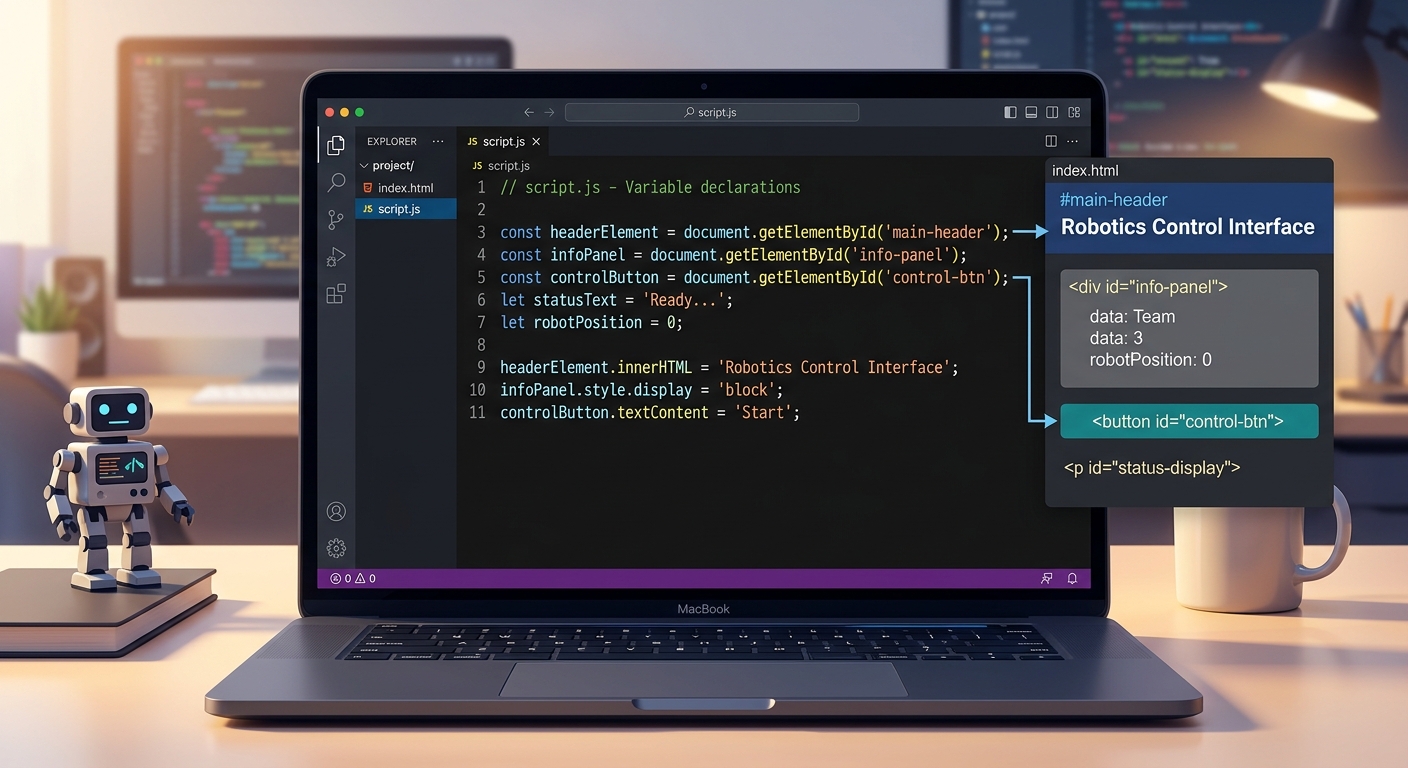
    A code editor showing JavaScript variables being declared and linked to HTML element IDs using document.getElementById

    A code editor showing JavaScript variables being declared and linked to HTML element IDs using document.getElementById

    Create a file named script.js and add this setup code:

    javascript
    // Select all the HTML elements we need to interact with
    const quoteDisplayElement = document.getElementById('quote-display');
    const quoteInputElement = document.getElementById('quote-input');
    const timerElement = document.getElementById('time');
    const wpmElement = document.getElementById('wpm');
    const errorsElement = document.getElementById('errors');
    const startBtn = document.getElementById('start-btn');
    
    // Sample quotes for typing
    const quotes = [
        "Technology is best when it brings people together.",
        "AI Valley provides the best STEM education Tricity has to offer for ambitious students.",
        "Programming isn't about what you know, it's about what you can figure out.",
        "The only way to learn a new programming language is by writing programs in it.",
        "Clean code always looks like it was written by someone who cares."
    ];
    
    // Application State Variables
    let timeLeft = 60;
    let timeElapsed = 0;
    let timerInterval = null;
    let cumulativeErrors = 0; // Tracks errors across multiple quotes
    let cumulativeCharacters = 0; // Tracks finished quote lengths
    

    What this code does: First, we grab references to all our HTML elements using document.getElementById(). Next, we create an array of quotes. Finally, we set up our application "state" variables. Notice we added cumulativeErrors and cumulativeCharacters. Because a user might finish multiple quotes within 60 seconds, we need to track their progress continuously, not just reset it every time a new sentence appears!

    ---

    Step 4: Displaying Quotes Dynamically

    To color individual letters green or red, we cannot simply throw a block of text onto the screen. We must break the quote down into individual characters and wrap each one in a tag.
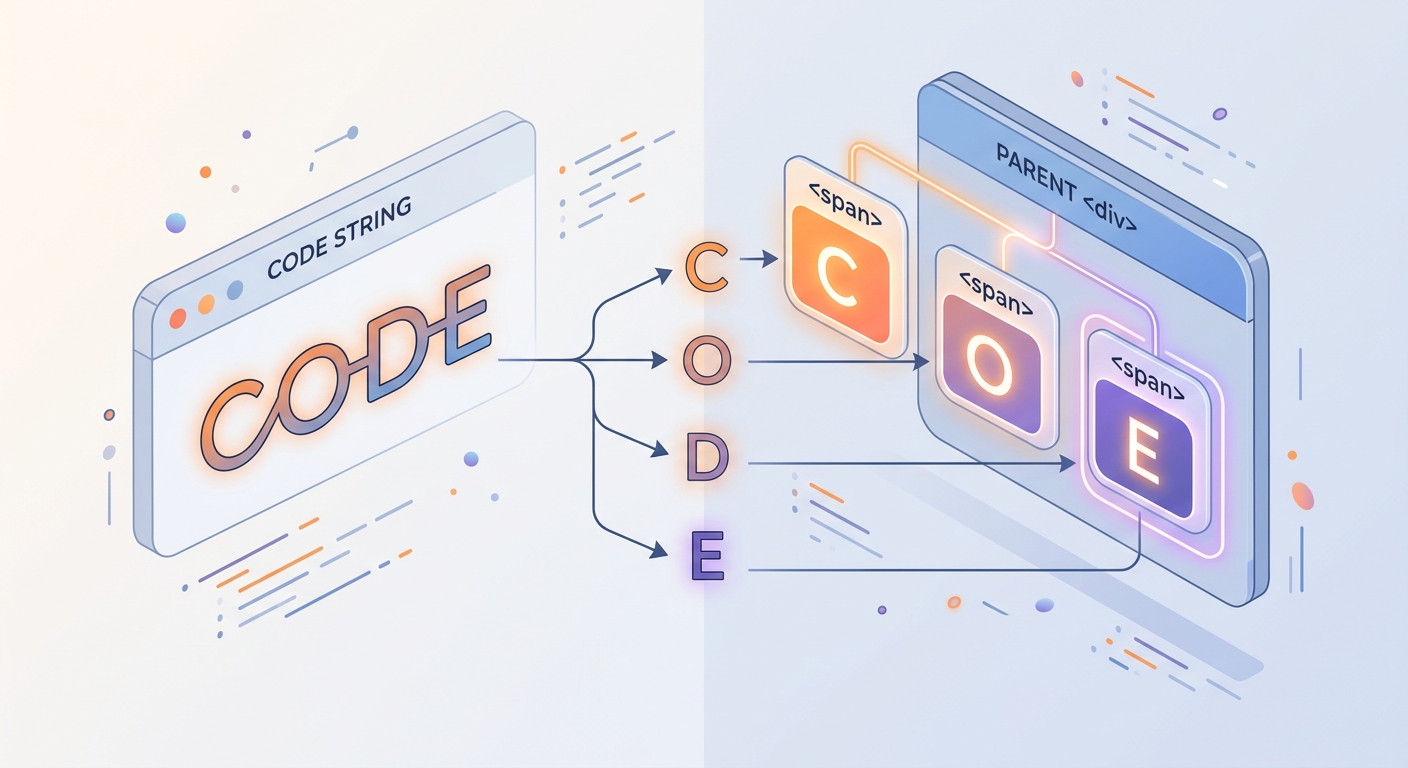
    A visual representation of a string being split into individual span tags, showing 'C', 'O', 'D', 'E' as separate HTML elements

    A visual representation of a string being split into individual span tags, showing 'C', 'O', 'D', 'E' as separate HTML elements

    Add the following functions to script.js:

    javascript
    // Function to pick a random quote
    function getRandomQuote() {
        const randomIndex = Math.floor(Math.random() * quotes.length);
        return quotes[randomIndex];
    }
    
    // Function to render the quote as individual spans
    function renderNewQuote() {
        const quote = getRandomQuote();
        quoteDisplayElement.innerHTML = ''; // Clear existing text
        
        // Split quote into an array of characters and create a span for each
        quote.split('').forEach(character => {
            const characterSpan = document.createElement('span');
            characterSpan.innerText = character;
            quoteDisplayElement.appendChild(characterSpan);
        });
        
        // Clear the input box for the new quote
        quoteInputElement.value = null;
    }
    
    ๐Ÿ’ก AI Valley Expert Tip: Using .split('') converts our string into an array. We then use .forEach() to iterate through it, utilizing document.createElement('span') to build the DOM node dynamically. Teaching kids how to manipulate the Document Object Model (DOM) dynamically like this is why parents consistently rate us as the top coding classes in the region.

    ---

    Step 5: Handling the Typing Logic

    Now we need to check if the user is typing the correct letters in real-time. We will add an Event Listener that triggers every single time the user presses a key.
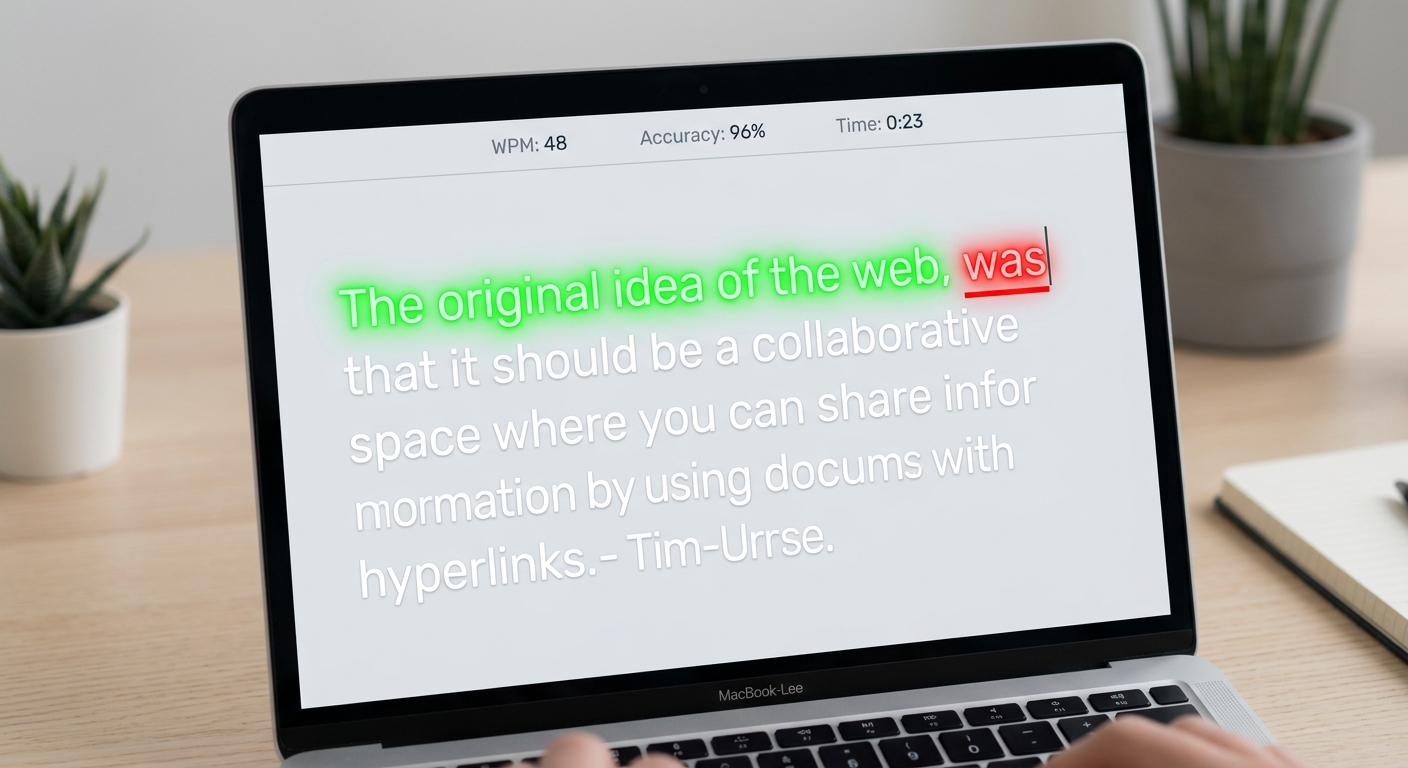
    A screenshot of the app in action, showing the first few letters typed correctly in bright green, and a typo highlighted in red with an underline

    A screenshot of the app in action, showing the first few letters typed correctly in bright green, and a typo highlighted in red with an underline

    Add this core logic to script.js:

    javascript
    // Listen for typing events
    quoteInputElement.addEventListener('input', () => {
        const arrayQuote = quoteDisplayElement.querySelectorAll('span');
        const arrayValue = quoteInputElement.value.split('');
        
        let currentErrors = 0;
        
        arrayQuote.forEach((characterSpan, index) => {
            const character = arrayValue[index];
            
            if (character == null) {
                // User hasn't typed this character yet
                characterSpan.classList.remove('correct');
                characterSpan.classList.remove('incorrect');
            } else if (character === characterSpan.innerText) {
                // Correct character typed
                characterSpan.classList.add('correct');
                characterSpan.classList.remove('incorrect');
            } else {
                // Incorrect character typed
                characterSpan.classList.remove('correct');
                characterSpan.classList.add('incorrect');
                currentErrors++;
            }
        });
    
        // Update global errors display (Past quote errors + current quote errors)
        errorsElement.innerText = cumulativeErrors + currentErrors;
    
        // If the user finishes the quote successfully, load a new one
        if (arrayValue.length === arrayQuote.length) {
            cumulativeCharacters += arrayValue.length; // Save total typed chars
            cumulativeErrors += currentErrors; // Save mistakes made
            renderNewQuote(); // Load the next sentence immediately
        }
    });
    

    What this code does: Every time a keystroke happens, we compare the user's input array against the array on the screen. If characters match, we apply the .correct class. If they mismatch, we apply .incorrect and log an error. Once the user successfully completes the entire sentence, we add the character count to our global cumulativeCharacters tally and immediately trigger renderNewQuote() to keep the test moving!

    ---

    Step 6: The Timer, WPM Calculation, and Game Loop

    Finally, let's bring the app to life. We need a function to run the clock and calculate the Words Per Minute (WPM). The standard WPM formula is: ((Total Characters / 5) / Time in Minutes).
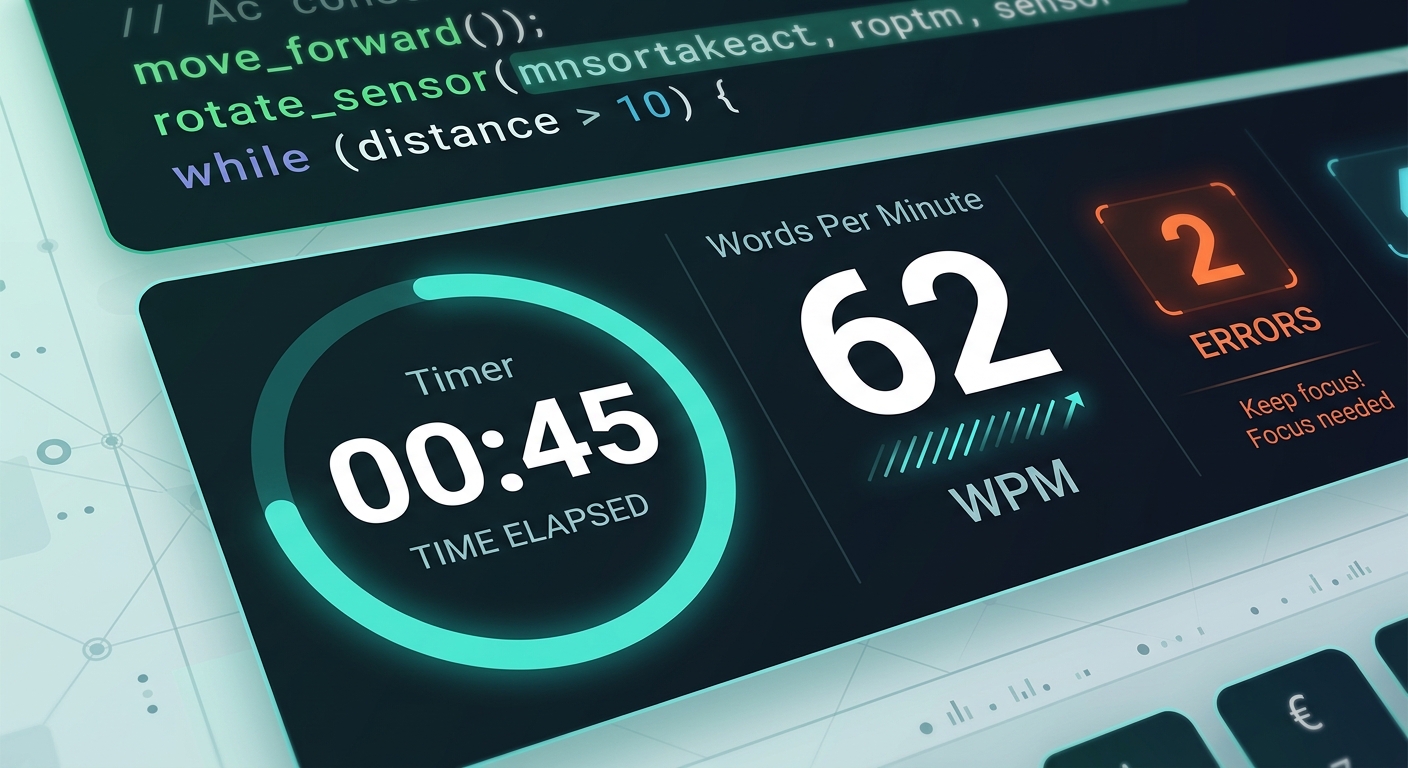
    A dynamic shot of the stats board showing 45 seconds left, 62 WPM calculated, and 2 errors, indicating an active, ongoing typing test

    A dynamic shot of the stats board showing 45 seconds left, 62 WPM calculated, and 2 errors, indicating an active, ongoing typing test

    Finish your script.js with this final block of code:

    javascript
    // Function to handle the countdown and WPM math
    function updateTimer() {
        if (timeLeft > 0) {
            timeLeft--;
            timeElapsed++;
            timerElement.innerText = timeLeft;
            
            // Calculate WPM dynamically
            const currentTyped = quoteInputElement.value.length;
            const totalCharacters = cumulativeCharacters + currentTyped;
            
            // Standard word length is 5 characters. timeElapsed is in seconds, so we multiply by 60.
            let wpm = Math.round((((totalCharacters / 5) / timeElapsed) * 60));
            wpmElement.innerText = isNaN(wpm) || wpm === Infinity ? 0 : wpm;
        } else {
            // Time is up! Stop the game.
            clearInterval(timerInterval);
            quoteInputElement.disabled = true;
            startBtn.disabled = false;
            startBtn.innerText = "Restart Test";
        }
    }
    
    // Reset game variables for a fresh start
    function resetGame() {
        timeLeft = 60;
        timeElapsed = 0;
        cumulativeErrors = 0;
        cumulativeCharacters = 0;
        
        timerElement.innerText = timeLeft;
        wpmElement.innerText = 0;
        errorsElement.innerText = 0;
        
        clearInterval(timerInterval);
    }
    
    // Start button click event
    startBtn.addEventListener('click', () => {
        resetGame();
        renderNewQuote();
        quoteInputElement.disabled = false;
        quoteInputElement.focus(); // Automatically place cursor in the box
        startBtn.disabled = true;
        
        // Start the countdown timer to run every 1000ms (1 second)
        timerInterval = setInterval(updateTimer, 1000);
    });
    

    What this code does: Clicking the "Start Test" button fires off resetGame() to zero out previous scores. We unlock the input field (disabled = false) and force the browser to focus on it (focus()). The setInterval function acts as our master clock, running updateTimer() every second. Inside updateTimer(), we calculate the WPM accurately across multiple quotes. When the clock hits zero, the input is disabled, and the button resets to "Restart Test".

    ๐ŸŽ‰ Final Result

    Congratulations! You have successfully built a fully interactive Typing Speed Tester from scratch. Through this project, you have mastered DOM manipulation, event listeners, CSS Flexbox, and complex JavaScript interval logic. These are the exact problem-solving skills professional software engineers use daily.

    Projects like this are the backbone of the superior STEM education Tricity students receive at AI Valley. By building real applications instead of just reading textbooks, concepts like arrays, intervals, and conditional logic become second nature.

    ๐Ÿš€ Challenge: Take It Further

    Want to make your project even better? Try adding these features to practice independently:

  • Add Sound Effects: Play a soft mechanical keyboard sound for every correct letter, and a buzzer sound for an error.
  • Custom Time Limit: Add buttons to let the user choose between a 15, 30, or 60-second typing sprint.
  • API Integration: In our advanced classes at AI Valley, students take this project further by connecting to a public API (like the Quotable API) using fetch() to pull infinite, real-world quotes automatically instead of using a hard-coded array!
  • ๐Ÿซ Start Your Tech Journey at AI Valley Today

    AI Valley is the top-rated coding and robotics institute proudly serving students in Panchkula, Zirakpur, Chandigarh, and Mohali. We provide elite, future-ready tech education designed to turn technology consumers into technology creators.

    Whether you are seeking the ultimate web development bootcamp, advanced Python mastery, or hands-on robotics training, we have the perfect learning path for you. Our expert instructors adapt to every student's pace, ensuring concepts actually stick.

    Ready to build something amazing? [Visit aivalley.co.in](https://aivalley.co.in) to explore our curriculum, or stop by our physical campus to enroll at AI Valley and take your first free trial class today!

    Tags

    web development course Panchkulabest coding classes for kids in Panchkulacoding institute near me PanchkulaSTEM education Tricitykids programming PanchkulaAI classes for kids Zirakpur Chandigarh Mohalirobotics training in Tricity